Seedance 2.5 is completely changing the way AI videos get made. If the current workflow is generating five second clips one at a time, downloading them, stitching them together, and hoping the character or product stays consistent, there is now a much better way to work.
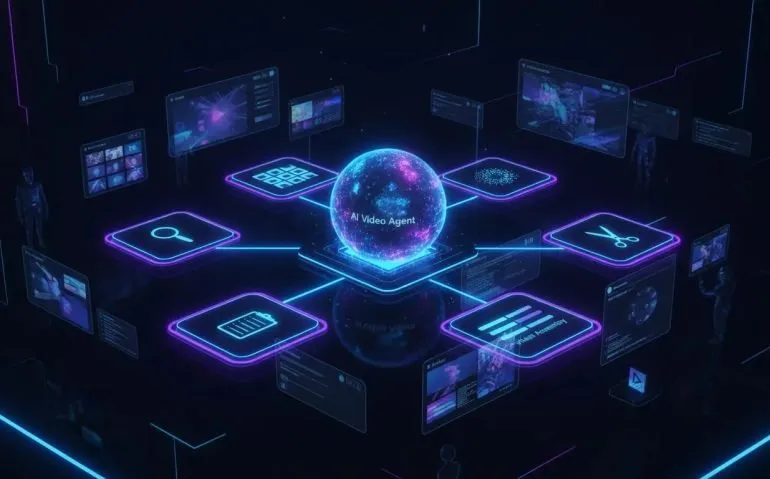
With TopView Canvas, Seedance 2.5 becomes part of a visual AI workspace powered by a video agent. Instead of receiving one clip from one prompt, you can have an agent research a topic, plan a concept, create a storyboard, generate visual assets, assemble videos, and help edit the final result. You still have control, but you are no longer stuck doing every repetitive step manually.
That unlocks a seriously different kind of AI video workflow. You can create longer single-shot videos, produce multiple product ads from one product link, build reusable promotional workflows, and manage every image, video, reference, and edit from the same canvas.
Why Seedance 2.5 Changes the AI Video Workflow
The old AI video process was fragmented. You had to create a small clip, make another clip, generate supporting images somewhere else, record or source a voiceover, edit everything in a timeline, and keep iterating until it looked coherent. That can work, but it is slow, especially when you need volume.
Seedance 2.5, accessed through TopView Canvas, is built for a more complete workflow. The big difference is that the system does not treat a video as an isolated generation. It can treat it as a project with a goal, a structure, assets, versions, and revisions.
TopView Canvas is not simply a prompt box that produces a video. It is a visual workspace where an intelligent video agent can run the workflow or work alongside you step by step.
The platform supports capabilities that make a major difference for serious content creation:
- Create videos up to roughly 30 seconds as a single shot.
- Add more than 50 reference assets to help maintain product and character consistency.
- Generate images, videos, audio, text, and supporting assets inside one canvas.
- Use an agent to research, plan, refine, and generate a full video concept.
- Edit clips with natural-language instructions instead of relying only on manual timeline work.
- Turn successful workflows into reusable skills or standard operating procedures.
That is the real shift. The goal is not just making a prettier five second AI clip. The goal is building a repeatable content system.
TopView Canvas Gives You a Visual AI Workspace
TopView Canvas gives every project a place to live. Generated assets appear as cards on the canvas, so it is easy to organize them, compare versions, move items around, connect ideas, and keep the project clean.
That matters when one request creates multiple assets. A campaign might include three short vertical product videos, two image ads, several reference photos, and revised versions of the strongest concept. Instead of losing track of everything across different tools and folders, the assets sit together inside the same workspace.
You can use the canvas in two ways:
Let the Agent Run the Process
In agent mode, you describe the outcome you want and the system starts building a plan. It can analyze the request, gather relevant context, load an appropriate workflow, map out scenes, choose a visual direction, and present a task preview before generation begins.
For example, a simple request such as creating a 20 second cinematic video about the latest ChatGPT work updates can become a structured video task. The agent can develop the messaging, visual approach, pacing, scene concept, and the assets needed to produce it.
Before approving the work, you can review the duration, prompt, overall focus, and creative direction. If the visuals or pacing are off, you can refine the plan rather than waiting until after the entire video has been generated.
Take Direct Control of Any Asset
If you already know what you need, direct generation is available too. You can create individual image or video cards from a prompt, upload assets, add text, create audio, and organize the project manually.
This balance is honestly what makes the canvas so useful. You can delegate the boring planning and production work, then step in precisely where your creative judgment matters most.
Reference Images Are Huge for Product and Character Consistency
One of the most frustrating parts of AI video has always been consistency. A product can change shape. A character can suddenly look like a different person. A key detail might disappear halfway through the generation.
Seedance 2.5 supports up to 50 reference images, giving the model much more context for the products, people, objects, or visual details that need to remain consistent.
Those references can be especially useful for:
- E-commerce product ads where the exact product needs to look right.
- UGC-style content that uses brand assets or a recurring product.
- Character-driven videos where continuity matters across scenes.
- Promotional campaigns that need a consistent visual identity.
- Short films that require repeatable environments, subjects, or props.
References do not mean you can be vague. The strongest results still come from clear instructions. If a particular pair of shorts, a specific product colour, or a defined logo must appear, upload the correct asset and say exactly what needs to be changed.
Being hyper-specific matters. If you leave an instruction open to interpretation, the AI may blend details, select a similar item, or make a creative choice that does not match the brand. The tool can make edits incredibly fast, but it still needs a clear direction.
From a Simple Prompt to a Finished Video
A great example of the video agent workflow starts with a straightforward prompt: create a 20 second video about a specific topic.
Rather than immediately generating random visuals, the agent can first work through the project. It develops context around the requested subject, identifies a relevant workflow, and creates a plan for the video. That may include the hook, messaging, style, scenes, visual elements, and overall pacing.
Once the plan is ready, you can approve it or ask for changes. This is important because it puts an approval step between the initial concept and the actual generation. It is much easier to adjust the direction early than to rebuild the project after the fact.
After generation, the finished video becomes an editable asset inside the canvas. From there, you can:
- Download the video.
- Send it back into the chat for a new instruction.
- Use video-to-prompt tools.
- Remove subtitles when needed.
- Extract the audio.
- Use the result as a starting point for another version.
This makes it much easier to test variations. You can create different hooks, compare visual directions, experiment with alternative messaging, and keep multiple versions visible at the same time.
Edit AI Videos by Describing the Change
The editing side is one of the most exciting pieces. Instead of manually cutting every part of a clip, you can open an asset and describe what should change.
You can add photos, videos, or voice elements. You can use masks. You can ask for a specific adjustment, such as getting to a voiceover more quickly, replacing a visual element, or changing part of the scene.
Natural-language editing does not remove the need for clear creative direction. It actually makes clear direction more valuable. A vague request can result in a small change or an unexpected interpretation. A precise request gives the system a much better chance of delivering the exact result you want.
A useful way to write an edit instruction is to include three things:
- The asset to change: identify the specific video, scene, or visual.
- The exact replacement or adjustment: explain what should appear or disappear.
- The intended outcome: clarify why the change matters, such as matching the supplied product reference.
For instance, instead of saying “fix the shorts,” upload the correct shorts image and specify that the shorts shown in a named video should be replaced with the shorts in the uploaded reference. That is the kind of instruction that keeps the output accurate.
Create Multiple Product Ads From One Product Link
This is where the workflow gets crazy for e-commerce and marketing.
Imagine giving the agent a product page URL and asking it to create three short promotional videos, each between five and 10 seconds, plus two image ads. Previously, that could mean manually collecting product information, downloading product images, writing multiple concepts, generating each asset separately, and organizing the entire campaign yourself.
With TopView Canvas, the product link can become the starting point for a full content package. The system can pull product details from the page, gather available images, load those references into the canvas, plan the requested videos and images, and generate the assets in parallel after approval.
The TopView browser extension can also help capture a product page and send its content directly to the canvas. That gives the agent product context and visual references before it begins planning the campaign.
A Better Product Content Workflow
- Open the product page and capture the relevant content with the TopView extension, or provide the product URL in the canvas.
- Request the desired deliverables, such as three short ads and two image creatives.
- Review the proposed video concepts, lengths, and image ad plan.
- Approve the plan.
- Allow Seedance 2.5 and the video agent to generate the assets.
- Inspect each result in the canvas and make targeted changes where needed.
- Download, upscale, revise, or reuse the strongest creative concepts.
The results can include product pairings and lifestyle context that make ads feel more complete. But that is also where quality control matters. If the system uses the wrong variant or a similar-looking product, upload the correct product image and request a replacement directly.
Suggested image: Include a screenshot-style graphic of a visual canvas showing product references connected to three video ads and two image ads. Use alt text: “TopView Canvas workflow for generating Seedance 2.5 product video ads from a product URL.”
Skills Turn One Great Workflow Into a Repeatable System
The most powerful idea here is not just generation. It is skills.
A skill is essentially a reusable workflow or SOP that captures the process behind a result you like. If you create a strong breaking-news video process, for example, you can turn it into a skill. The next time, you can provide the topic and desired length while the system follows the proven process: research the topic, plan the structure, generate the video, and prepare the output.
TopView Canvas includes a skills library, and skills can also be created from a successful chat workflow. This is huge because it turns trial-and-error effort into something you can reuse.
A promo video generator skill, for example, can guide the agent to research the product or topic, gather the necessary details, identify needed assets such as logos, plan the video, and then generate it using Seedance 2.5.
Skills are useful for teams and repeatable content formats because they create consistency in the production process. Rather than starting from zero every time, you build a framework that can scale.
High-Value Skill Ideas
- Breaking-news short video generator.
- Product launch promo generator.
- UGC-style product ad workflow.
- Short-form social campaign generator.
- Film concept and storyboard workflow.
- Recurring branded promo video process.
This is the point where AI video creation starts to feel less like experimenting with individual prompts and more like operating a content engine.
Who Can Use This AI Video Agent?
This workflow is useful across a massive range of creative and commercial use cases. The reason is simple: almost everyone needs more content, but almost nobody wants to spend hours assembling small generations manually.
- Creators can build short-form concepts, test hooks, and create multiple variations faster.
- Marketers can make campaign assets, promo videos, and product creative from centralized brand references.
- E-commerce brands can turn product pages into video and image ads.
- UGC teams can create product-focused content while preserving visual details.
- Filmmakers can explore scenes, styles, storyboards, and 3D creative concepts in a visual workspace.
- Businesses can convert established processes into skills that make repeatable production easier.
The important thing is not to hand over all creative responsibility. The best approach is to let the agent handle research, structure, first drafts, asset generation, and repetitive production tasks while you keep control over the strategy, brand accuracy, and final creative decisions.
The New Standard Is an AI Video System, Not a Single Clip Generator
Seedance 2.5 is impressive on its own, but the real advantage comes from using it inside a workspace like TopView Canvas. The canvas gives you visibility. The agent gives you speed. Reference assets give you more consistency. Editing through chat gives you flexibility. Skills give you scale.
If you are tired of burning hours generating tiny clips one by one and stitching them together manually, this is the fix. Build the whole project in one place, approve the plan, generate assets in parallel, make exact revisions, and save your best workflow so you can use it again.
Explore TopView AI and Seedance 2.5 to start building AI video projects with a full video agent while keeping control of every step.
Suggested video embed: Add the original walkthrough as a supporting resource with the title “Seedance 2.5 Just Killed Content Creators: Use This Video Agent to Access It.”
Categories: AI Video, Content Creation, E-commerce Marketing, Generative AI
Tags: Seedance 2.5, TopView Canvas, AI video agent, AI video generation, product video ads, UGC videos, content workflow
Frequently Asked Questions
What is Seedance 2.5?
Seedance 2.5 is an AI video model that can be used through TopView Canvas to generate longer AI video content, work with reference assets, and support a broader video production workflow.
What is TopView Canvas?
TopView Canvas is a visual AI workspace where a video agent can plan, research, generate, edit, and organize video projects, images, audio, text, and reference assets.
Can I use reference images with Seedance 2.5?
Yes. Seedance 2.5 supports more than 50 reference images, which can help improve product and character consistency across generated content.
Can TopView Canvas create ads from a product URL?
Yes. You can provide a product URL or use the TopView extension to capture a product page, then request multiple short videos and image ads. The agent can analyze the product information, create a plan, and generate the assets after approval.
What are skills in TopView Canvas?
Skills are reusable AI workflows that capture a successful process. They can help repeat tasks such as researching a topic, creating a promo video, planning scenes, and generating a finished asset with a consistent approach.