
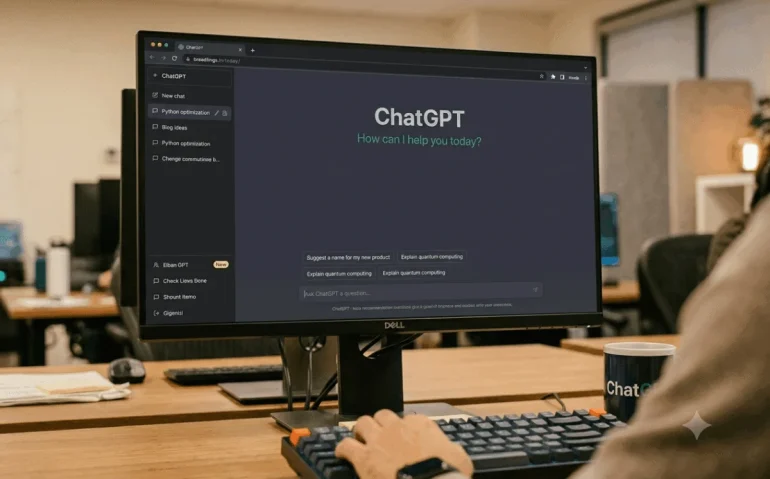
ChatGPT has quietly become a lot more powerful than most people realize. If you are still using it like a simple chatbot, you are missing some of the best new features available right now. These hidden ChatGPT settings can help you create interactive tools, draft smarter emails, improve memory, search across connected apps, and even build AI agents that handle work for you.
The big shift is this: ChatGPT is no longer just for asking questions. It is turning into a full productivity system. Used well, it can support planning, communication, research, automation, and repeatable workflows in a way that feels much more like software than chat.
Here are the most useful new ChatGPT features and settings to turn on if you want better results and less manual work.
1. Build interactive charts and tools directly inside ChatGPT
One of the most impressive new capabilities is ChatGPT’s ability to create interactive charts right inside a conversation.
For example, you can ask it to build something practical like a retirement calculator that estimates how much money you may have by a certain age. Instead of just giving a static answer, it can generate a chart you can actually interact with. That means adjusting values, exploring different assumptions, and using the output like a lightweight app.
This is a big deal because it moves ChatGPT beyond text generation into usable interfaces.
What you can do with this
- Create financial calculators
- Visualize uploaded data
- Run simulations
- Generate interactive graphs for business or personal planning
- Export or inspect the underlying code
If ChatGPT builds something useful, pin that conversation. That gives you a quick way to return to the tool later instead of recreating it from scratch. For anyone using AI for recurring tasks, pinning great outputs is one of the easiest productivity wins.
Suggested image: Screenshot of an interactive chart built inside ChatGPT with alt text: “Interactive retirement calculator created with ChatGPT.”
2. Connect Gmail for more personalized writing
Another major upgrade is Gmail integration. Once connected through personalization and app settings, ChatGPT can use your email context to produce more natural and relevant responses.
This can be especially helpful when writing emails that need to match your usual tone or reference ongoing conversations.
Say you need to draft a message asking your boss for two weeks off for your wedding. ChatGPT can create the email, let you edit it, and in some cases even open an email draft directly from inside ChatGPT so you can send it faster.
The real advantage is context. Instead of writing in a vacuum, ChatGPT can work with more of your communication style and history, which usually leads to better first drafts.
Why this matters
- Emails sound more like you
- Replies can reflect prior context
- You spend less time rewriting generic AI drafts
- Routine communication becomes easier to manage
For more on official app connections and privacy controls, it is worth reviewing OpenAI’s help resources and account settings directly through the platform. You can also compare how email automation fits into your workflow with related productivity guides on AI automation workflows.
3. Use scheduled workflows for daily communication
Once app connections are in place, ChatGPT becomes much more useful for recurring communication tasks. A particularly powerful option is scheduled activity tied to email and other channels like Slack or Outlook.
The idea is simple. ChatGPT can review communication inputs, prepare draft responses, and help you process them on a regular schedule. If you pin those chats, you can return to the same workflow each morning and move through your messages much faster.
This works well for:
- Inbox triage
- Reply drafting
- Status updates
- Coordination messages
- Follow-up reminders
When people talk about AI productivity, this is where it starts to feel real. Not because it replaces judgment, but because it removes a chunk of repetitive communication overhead.
4. Turn on every major ChatGPT setting that improves context
Most people never check their settings carefully, which means they use a limited version of what ChatGPT can actually do.
If these options are available in your account, they should generally be enabled:
- Memory
- Reference memory
- Web search
- Canvas
- ChatGPT voice
- Advanced voice
- Connector search
What these settings actually do
Memory and reference memory help ChatGPT remember useful details about your preferences, projects, and recurring needs.
Web search allows it to pull in current information when needed instead of relying only on older built-in knowledge.
Connector search helps it search across linked tools and sources for relevant answers or history.
Canvas expands how you can work on content and ideas in a more structured space.
Voice and advanced voice make it easier to use ChatGPT conversationally, especially when you want to think out loud or move quickly.
The broader point is this: better context leads to better outputs. The more relevant information ChatGPT can draw from, the more useful its results tend to be.
5. Connector search is one of the most underrated features
Connector search deserves special attention because it changes how ChatGPT finds information. Instead of only answering from memory or the open web, it can search across your connected tools and data sources.
That means ChatGPT can become a cross-platform assistant instead of a standalone chatbot.
If you work across Gmail, Slack, Outlook, calendars, or other apps, this feature can save a surprising amount of time. It reduces the need to jump from tab to tab hunting for details.
For fast-moving work, context switching is expensive. Connector search helps cut that down.
Suggested infographic: A simple flow showing ChatGPT connected to Gmail, Slack, Outlook, calendar, and custom data sources. Alt text: “How ChatGPT connector search pulls context from multiple apps.”
6. ChatGPT Workspace unlocks agents and repeatable systems
If you are serious about using ChatGPT beyond casual prompts, a Workspace account is where things start to get interesting.
Inside Workspace, you can access agents. These are persistent AI setups designed for ongoing jobs rather than one-off questions. Think of them as always-available assistants built for specific roles.
There are ready-made templates for common use cases, including things like:
- Chief of staff workflows
- Customer reply drafting
- Industry brief generation
- Communication support across Gmail, Outlook, Slack, Teams, and calendars
These templates can include app connections, capabilities, and instructions that let the agent do real work with more consistency than a blank chat ever could.
This is the point where ChatGPT starts to behave less like a search box and more like an operational layer for your work.
7. Create your own custom ChatGPT agent
Prebuilt templates are useful, but custom agents are where the system becomes personal.
You can create an agent for a specific recurring task, such as generating YouTube scripts, titles, tags, and descriptions. The setup process can guide you step by step by asking questions and refining the agent based on your answers.
This approach matters because most people are not sure how to define a strong AI workflow upfront. A guided build process makes it easier to create something usable without needing to know every technical detail in advance.
Custom agents can include
- Instructions for tone and format
- Connected apps and channels
- Automations
- Files for reference
- Memory for recurring context
- Reusable skills
You can also choose where the agent operates, whether inside ChatGPT or through another connected channel. That flexibility is what makes agents practical rather than just experimental.
8. Skills may be the easiest way to get consistent output
If ChatGPT sometimes does a great job and then suddenly gives weaker results the next time, skills are one of the best fixes.
A skill lets you save a repeatable method for a task once you get a result you like. For example, if ChatGPT generates a script format that works well for your content, you can turn that output pattern into a reusable skill. After that, you can call it again whenever you need the same style and structure.
This is incredibly useful because it reduces randomness.
Why skills matter
- They preserve successful workflows
- They improve consistency
- They reduce repeated prompt writing
- They help teams standardize outputs
- They make ChatGPT feel more like a trained assistant
Skills can be created from work you have already done successfully, then reused later through a shortcut-style command. You can also view, manage, test, and share those skills in settings.
If you want dependable output, this is one of the smartest features to adopt early.
9. Add files, memory, and custom tools to strengthen your agents
Custom agents get significantly stronger when you give them the right inputs.
That can include:
- Files for background knowledge or reference material
- Memory for persistent preferences and context
- Skills for repeatable actions
- Custom MCP connections for extended capabilities
The value here is cumulative. A connected agent with memory, clear instructions, and reusable skills is much more capable than a generic prompt in a blank chat window.
That is also why many people feel disappointed by AI. They are testing advanced systems in the most basic possible way. The more intentional the setup, the better the performance usually becomes.
10. Stop comparing basic prompting to what modern AI systems can do
One of the clearest themes here is that AI tools are evolving fast. ChatGPT is no longer just a place to type a question and get a paragraph back.
It now supports:
- Interactive data tools
- Email drafting and communication support
- Search across connected services
- Memory-based personalization
- Agent creation
- Skills for repeatable tasks
- Workflow automation
If you still use it the same way you did months ago, you are leaving a lot on the table.
For broader context on responsible AI use and system design, reputable resources like OpenAI and NIST’s AI Risk Management Framework are useful places to deepen your understanding.
How to start using these ChatGPT features responsibly
The phrase “use responsibly” matters here. More personalization and more connected tools can create better results, but they also require more thought.
A few practical guidelines:
- Review connected app permissions regularly
- Be careful with sensitive business or personal information
- Verify important emails before sending
- Check automated outputs for accuracy
- Use memory intentionally, not passively
- Test agents on low-risk tasks first
AI becomes most valuable when it saves time without creating avoidable mistakes.
The biggest takeaway
The hidden secret ChatGPT settings that matter most are the ones that improve context, consistency, and automation.
If you only change a few things today, make it these:
- Turn on all key settings like memory, web search, connector search, canvas, and voice
- Connect Gmail and other tools you already use
- Start pinning your best workflows
- Build one custom agent for a recurring task
- Convert one strong output into a reusable skill
That alone can dramatically improve the quality of your ChatGPT results.
If you want to keep building on this, explore more advanced AI workflow strategies in our guide to ChatGPT agents and prompt systems for business.
FAQ
What are the most important new ChatGPT features to enable first?
Start with memory, reference memory, web search, connector search, canvas, and voice features. These improve context and make ChatGPT much more useful for everyday tasks.
Can ChatGPT really create interactive charts?
Yes. It can generate interactive charts and lightweight tools inside the chat experience, including calculators, simulations, and data visualizations. In some cases, you can also inspect or download the code behind them.
How does Gmail integration improve ChatGPT results?
Connecting Gmail helps ChatGPT draft emails with more context and a more personalized tone. It can also support faster response workflows by working alongside your existing communication history.
What is the difference between ChatGPT skills and agents?
Skills are reusable methods for specific tasks or output styles. Agents are broader systems that can include instructions, memory, files, app connections, and automations for ongoing work.
Is ChatGPT Workspace worth it?
If you want access to agents, advanced workflow building, reusable skills, and better team-style functionality, Workspace can be much more useful than a basic subscription. Its value depends on whether you plan to use ChatGPT as a serious productivity tool.
What is connector search in ChatGPT?
Connector search allows ChatGPT to search through linked apps and services for relevant information, rather than relying only on built-in knowledge or web search. It is especially useful for finding context across work tools.
Meta description
Discover hidden ChatGPT features, settings, agents, and automations that improve productivity, memory, email drafting, and workflow consistency.
Suggested tags and categories
- ChatGPT
- AI tools
- AI productivity
- ChatGPT agents
- Automation
- Email automation
- AI workflows
Final note
ChatGPT is getting more capable by the week. The people who get the most value from it will not be the ones asking better random questions. They will be the ones building better systems. Set up the hidden features, create a few repeatable workflows, and start treating AI like infrastructure instead of novelty.
If this sparked new ideas, share the article, leave a comment with the feature you are testing first, and keep exploring related AI workflow content.