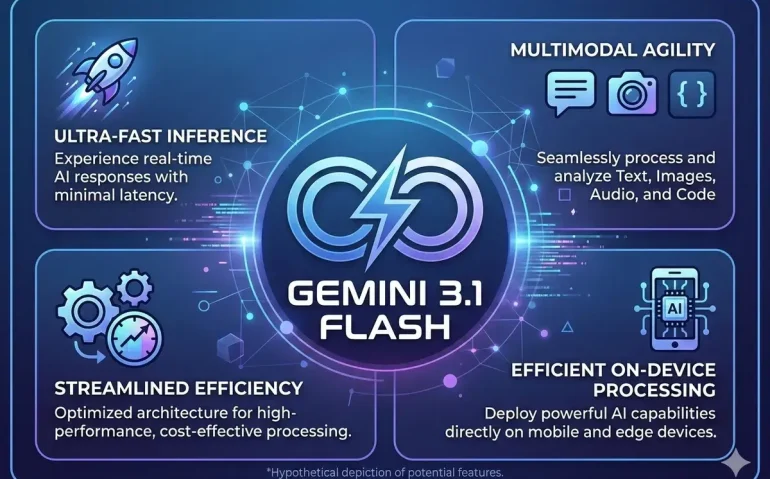
Google just pushed a major set of updates across Gemini, its image models, NotebookLM, and design tooling. If you rely on AI for apps, images, content, or product design, these changes—especially the new Gemini 3.1 Flash—are worth immediate attention. This article breaks down what’s new, how to access each feature, which upgrades matter most, and practical recommendations for integrating them into your workflow.
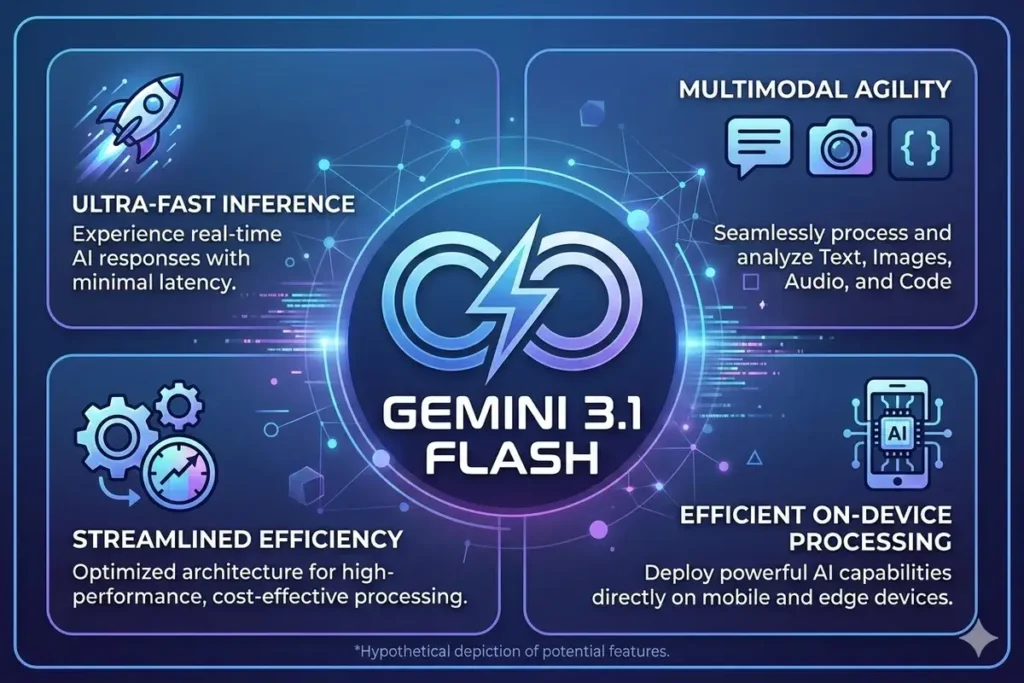
Table of Contents
- Quick snapshot: the four headline updates
- Why this matters
- Deep dive: Gemini 3.1 Flash
- New: Nano Banana 2 — web-aware image generation
- Prompt engineering made easier: My Prompt Buddy
- NotebookLM: more infographic styles and control
- Google Stitch: built-in edit and export improvements
- Practical migration checklist
- Suggested assets and multimedia
- Meta description and tags
- Internal and external linking suggestions
- FAQs
- Final recommendations and next steps
Quick snapshot: the four headline updates
- Gemini 3.1 Flash—a fast, cost-effective release of Gemini 3.1 optimized for high throughput and low latency.
- Nano Banana 2—a major image-generation upgrade that can search the web for reference images to improve realism and accuracy.
- My Prompt Buddy—a prompt optimizer Chrome extension that refines prompts and stores reusable prompt shortcuts.
- NotebookLM and Google Stitch enhancements—new infographic visual styles in NotebookLM and direct-edit functionality plus better exports in Stitch.
Why this matters
These updates collectively push Google’s ecosystem toward faster, cheaper, and more capable AI-driven production. Whether you run a consumer app, generate assets for clients, or use AI for research and presentation, the combination of a high-performance chat model, smarter image creation, prompt engineering tools, and visual design automation can cut costs and raise output quality.
Deep dive: Gemini 3.1 Flash
What Gemini 3.1 Flash is
Gemini 3.1 Flash brings the capabilities of Gemini 3 with the speed and cost profile of a flash model. That means you get stronger reasoning, better results on benchmarks (including humanity-style exams), and lower input/output pricing compared with larger models. It’s designed for real-time apps, high-volume pipelines, and anyone who needs a fast, reliable LLM without high compute costs.
How to access Gemini 3.1 Flash
- Open Google AI Studio and go to the Playground area.
- Create a new chat session and choose the model selector.
- Click on “Explore all models” and filter to find Gemini 3.1 Flash (sometimes labeled as Gemini 3.1 Flash Light preview).
- Adjust system instructions, temperature, media resolution, and thinking level (minimal, low, medium, high) from the right-hand panel.
- Enable advanced features as needed: structured outputs, code execution, function calling, grounding with Google Search, and URL/context injection.
Key features and recommendations
- Great cost/performance—very low input and output prices compared with many competitors, making it ideal for running apps at scale.
- Fast inference—one of the fastest models available, excellent for interactive products.
- Rich tooling—supports structured outputs, grounding with Google Search, function calling, and code execution for complex workflows.
- Upgrade suggestion—if you run production apps on older Gemini flash variants or other fast models, test and consider upgrading to 3.1 Flash for both cost savings and better accuracy.
New: Nano Banana 2 — web-aware image generation
What changed
Nano Banana 2, now available in AI Studio’s Images section, received a substantial upgrade: an optional image search mode that can automatically pull reference images from the web to inform and enhance generated images. It also now supports more aspect ratios, higher resolution options including 4K, and flexible output formats (image-only or image plus text).
How the web image search works
When you enable the image search option, Nano Banana 2 queries Google images for visual references relevant to your prompt. The model uses those references to build more accurate, context-aware visuals—especially useful for domain-specific or real-world objects where accuracy matters, like product mockups, architectural details, or historical items.
Practical tips
- Link an API key in AI Studio to use Nano Banana 2 inside your projects and apps.
- Use 4K for final assets—it takes longer but yields much higher detail for prints, high-res displays, and client deliverables.
- Select the right thinking level—use high for complex scenes and minimal for simple iterations.
- Choose the output format—image and text if you want alt text or captions included; image-only if you just need the visual.
- Leverage the web search mode when realism or correct object reference is required—for example, creating a realistic airplane window seat or a branded product render.
Example use case: “Window seat” app
Imagine an app that designs custom airplane window seats. If the prompt is ambiguous, Nano Banana 2 will automatically search the web for seat configurations, reference images, and design cues, then combine that visual knowledge to create enhanced, accurate mockups. This reduces manual research and produces visuals that align better with real-world expectations.
Prompt engineering made easier: My Prompt Buddy
What My Prompt Buddy does
My Prompt Buddy is a Chrome extension and prompt optimizer that works with Gemini, ChatGPT, Claude, and other LLMs. It stores reusable prompts, provides shortcuts, and—most importantly—optimizes prompts by expanding them into richer, more specific instructions.
Why the optimizer matters
The difference between a vague prompt and a well-structured one can be dramatic. The optimizer converts simple inputs into detailed prompts that include influence, framing, atmosphere, technical camera or render settings, and negative prompts to exclude unwanted artifacts. That leads to higher quality images, more accurate reasoning, and better output consistency.
How to use it
- Install the extension and open the prompt manager.
- Save frequently used prompts as shortcuts for quick reuse.
- Use the Prompt Optimizer: paste your current prompt, describe the ideal output, select the prompt type (standard, reasoning, image, video, etc.), and click “Optimize Prompt.”
- Review the expanded prompt and run it in your model of choice.
Why negative prompts are useful
A negative prompt tells the model what to avoid—incorrect objects, undesired styles, or visual artifacts. Including negatives consistently reduces iterations and prevents common failure modes in image generation.
NotebookLM: more infographic styles and control
What’s new
NotebookLM’s infographic generation now supports a wide range of visual styles and levels of detail. Styles include sketchnote, professional, scientific, anime, clay, editorial, instructional, bento grid, bricks, and more. You can also choose concise, standard, or detailed output levels to match your audience and distribution channel.
Choosing concise vs detailed
Concise infographics are ideal for social media and quick explainers. They’re visually focused, easy to scan, and help you communicate the main idea fast. Detailed infographics are better for reports, educational material, or internal documentation where depth matters. The tool combines up to 70 sources to generate each infographic, giving a robust knowledge base behind the visuals.
Recommended usage
- Use concise for social posts, pitch decks, and executive summaries.
- Use detailed for whitepapers, internal training, and technical documentation.
- Experiment with different visual styles to find the tone that matches your brand.
Google Stitch: built-in edit and export improvements
What Stitch does
Stitch is a visual design tool that generates UI layouts, app screens, and web pages from descriptive prompts. It transforms rough ideas into polished designs and now supports real-time editing with AI.
New editing workflow
After generating a layout, use the new Modify > Edit flow to tweak elements directly in Stitch. Describe the change you want and the AI will update the design. You can annotate, edit, or define system design components and generate multiple variations quickly.
Export and preview
- Export designs directly into AI Studio.
- Copy designs to the clipboard for quick sharing or handoff.
- Export to “MCP” or other development workflows for further implementation.
- Preview on mobile, tablet, or desktop and generate a QR code for instant device testing.
- Use the predictive heat map to understand likely areas of user attention and interaction.
Why Stitch accelerates design
Stitch makes it easy to iterate with AI and produce production-ready layouts. For non-designers, it provides a fast path to professional-looking UIs. For designers and developers, it speeds up prototyping and handoff.
Practical migration checklist
If you manage AI-powered apps or content workflows, here’s a quick checklist to capture the value of these updates:
- Test Gemini 3.1 Flash with a representative set of prompts to compare latency, cost, and output quality.
- Switch low-latency, high-volume endpoints to 3.1 Flash where accuracy vs. cost is favorable.
- Enable Nano Banana 2’s image search for asset generation tasks that require real-world reference accuracy.
- Adopt My Prompt Buddy for prompt reuse and optimization across teams to reduce iteration cycles.
- Use NotebookLM’s concise templates for external comms and detailed templates for internal knowledge-sharing.
- Integrate Stitch into your design prototyping process and use the export options for developer handoff.
Suggested assets and multimedia
To make the most of these tools, include the following in your content pipeline:
- High-quality reference images for Nano Banana 2; add descriptive alt text for accessibility.
- Infographic templates exported from NotebookLM for quick reuse in presentations.
- Design system snippets from Stitch exported into your front-end stack.
Suggested alt text example for an image: “Infographic showing concise vs. detailed NotebookLM outputs, with icons and color-coded sections to indicate information hierarchy.”
Meta description and tags
Meta description: Google rolled out Gemini 3.1 Flash, Nano Banana 2 image-search improvements, NotebookLM infographic styles, and Stitch editing—discover how to use them and upgrade workflows.
Suggested tags and categories:
- AI
- Google Gemini
- Gemini 3.1 Flash
- AI image generation
- NotebookLM
- Google Stitch
- Prompt engineering
Internal and external linking suggestions
For SEO and user navigation, link internally to pages that explain prompt engineering, an AI model comparison guide, and a tutorial on integrating AI models into production. For external credibility, link to Google AI Studio documentation, certifications on AI model safety, and authoritative articles on prompt engineering best practices.
FAQs
Is Gemini 3.1 Flash free to use right now?
Access to the preview of Gemini 3.1 Flash in AI Studio is available now and can be tried from the Playground. Pricing for production use varies by API and usage tier, but the model is positioned as a low-cost, high-throughput option compared with larger models.
Do I need an API key to use Nano Banana 2?
Yes. To use Nano Banana 2 inside Google AI Studio or in apps, you will need to link an API key. That enables features such as the web image search and programmatic access for automated workflows.
Will My Prompt Buddy work with other LLMs?
Yes. My Prompt Buddy is a model-agnostic Chrome extension. It can optimize prompts for Gemini, ChatGPT, Claude, and others. It shines when you want repeatable, high-quality prompts and negative prompts to avoid unwanted outputs.
Which NotebookLM style should I use for social media?
Use the concise visual style for social media because it is easy to scan and share. Styles like sketchnote or editorial can be visually appealing depending on your brand. Save the detailed variants for downloadable resources, reports, or training materials.
Can I export Stitch designs to developer tools?
Yes. Stitch supports exporting designs to AI Studio, copying to the clipboard for quick handoff, and outputting assets that can be integrated into development workflows. It also supports previews for mobile, tablet, and desktop along with a QR code for fast testing.
Final recommendations and next steps
If you value speed and cost-efficiency, prioritize testing Gemini 3.1 Flash with a representative workload and measure latency and cost improvements. For image-heavy workflows, enable Nano Banana 2’s web image search for better reference-aware visuals. Adopt a prompt optimization routine with My Prompt Buddy to reduce iterations and make outputs more predictable. Finally, use NotebookLM and Stitch to streamline content and design creation—these tools now let teams produce high-quality assets faster and with fewer handoffs.
Try the new features in AI Studio, experiment with prompt optimization, and update your production endpoints where the performance and cost benefits make sense.
Call to action
Explore Gemini 3.1 Flash in AI Studio, experiment with Nano Banana 2’s image search, and consider My Prompt Buddy to optimize prompts. If you want to test a prompt optimizer today, visit mypromptbuddy.ai to get started.
This article was created from the video Google Released Gemini 3.1 Flash and It’s INSANE! (New use cases) with the help of AI.